
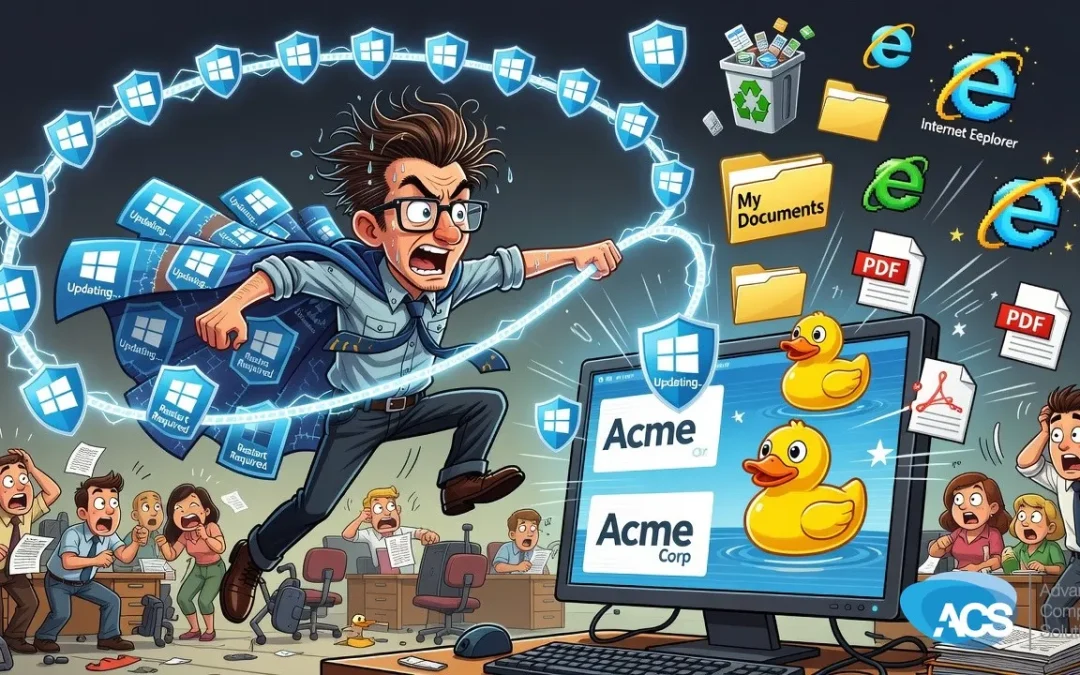
The September Windows 11 Patch Fixes That Maddening Desktop Reset Bug
If your desktop icons, wallpaper, or display layout have been randomly rearranging themselves, you are not imagining it — and your IT team did not do it.
Microsoft quietly introduced a bug in the August preview update for Windows 11 that caused desktop settings to reset without warning. Wallpaper would change. Icon layouts would scatter. Display configurations would go back to some default state. And then your team would call IT wondering what happened.
What Actually Happened With This Bug
The August preview update shipped with a flaw that wiped out desktop configurations on Windows 11 machines. We are talking wallpaper, display settings, icon layouts — all of it resetting randomly, without any action from the user. One minute your setup looks the way you left it, the next it looks like a fresh install.
As Albert put it on air, that kind of thing is super annoying — and not just for the person sitting at the desk. When a customer calls their IT provider and says “my desktop changed,” the first response is always “we didn’t do it.” Which is true. But it still creates chaos, confusion, and wasted time chasing a problem that Microsoft introduced in the first place.
The good news is that the September 2026 update fixes it. Microsoft, in quotes as Albert said, is “on the ball” — patching a problem they created. Desktop icons and layouts should now stay put after this month’s patches are installed.
What This Means for Your Business
For most small businesses, a scrambled desktop sounds like a minor annoyance. And sometimes it is. But think about what actually happens when a staff member shows up and their screen looks wrong. They stop working. They call someone. That someone stops working. Time gets burned troubleshooting something that was never a real problem to begin with — just a bad update. That wasted time is the villain here, and it compounds fast across a team.
For service businesses and manufacturing shops running Windows 11, this is especially relevant. If your team relies on specific monitor layouts, multi-display setups, or consistent desktop configurations to do their jobs efficiently, random resets are more than cosmetic. They interrupt workflow and eat into the day. The fix is already out — but only if your machines are actually getting updates installed.
What To Do This Week
- Make sure your Windows 11 machines are picking up the September update. Go to Settings → Windows Update and check that the latest patches are installed. Do not assume they are — verify it on the machines your team uses most.
- Leave your computers on overnight. This one matters more than people realize. Windows updates install in the background, often overnight. If your team shuts down their machines at the end of every workday, those updates never get a chance to run. Even with managed IT in place, a computer that is powered off cannot receive patches. Leave them on.
- Reboot periodically. Installing updates and applying them are two different things. A machine that has downloaded the patch but never rebooted is still running the old code. A regular restart — at least a few times a week — makes sure updates actually take effect.
- If the desktop chaos is still happening after the update, flag it. Most machines should be back to normal once September’s patches are in place. If you are still seeing random resets after that, something else may be going on and it is worth a quick look from your IT team.
Questions about how this affects your setup? Schedule a free IT consultation and we’ll walk through it with you.
Wherever your team is based, ACS provides hands-on managed IT support — see how we help businesses in Traverse City & Northern Michigan.